.svg)
.svg)

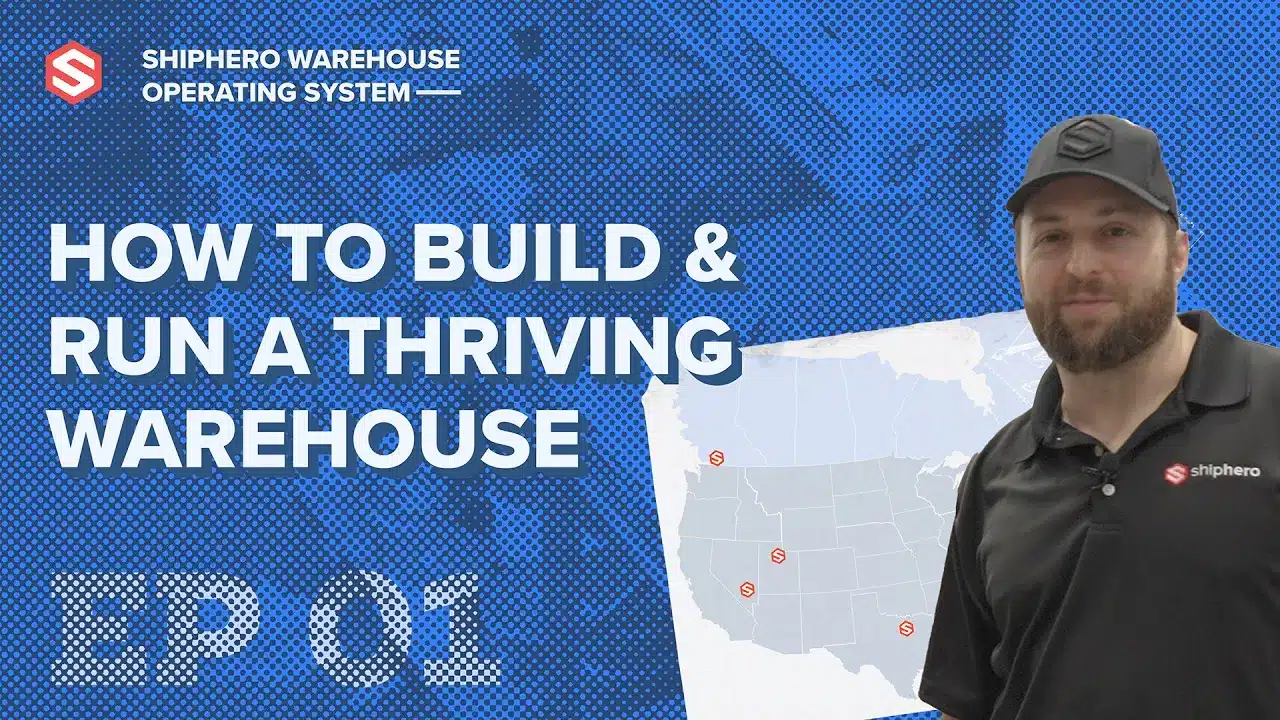
This How-To Video walks you through ShipHero's easy-to-use Purchase Orders & Receiving functionality. Check out how easy it is to manage purchase orders, report damages and receive shipments with ShipHero.
In this video, we demonstrate the following:
- Managing All Purchase Orders
- Creating a Purchase Order
- Receiving a Purchase Order
- Printing Barcodes from Receiving Page
- Receiving Products to Multiple Locations
- Rejecting Units
- Over and Under Received Products
- Editing a Purchase Order Later
- What Comes Next
In this video, we will cover utilizing and managing Purchase Orders or POs in ShipHero. With Purchase Orders, you can replenish and receive inventory into your warehouse quickly and easily. Let’s go ahead and open Purchase Orders in ShipHero. Here you can see all our existing purchase orders. You can filter them by a handful of different variables including date, vendor, and status. First, let’s create a new purchase order in app.shiphero.com. We have all of our vendors already added, so we can select which vendor we want to create a PO for, which warehouse it’s going to and the total amount of products for the PO. There are some options for auto-adding which can be based on the reorder level and reorder amount set in the product settings. …or we can add the products individually to the PO and then input the quantity needed for each product and hit ‘Save Order.’ You can also add prod ucts at purchase-orders.shiphero.com once the PO has been created. This allows you to add several different products at the same time. After that, we can change the auto-generated PO number, add the tracking information once we have it, enter the expected ship and arrival dates, and upload any attachments if needed. The quantity added to the Sell Ahead column will be added to the available inventory quantity on your various sales channels. You can add to the sell ahead field while creating the PO, or update it at a later date if needed. ShipHero allows you to email the PO directly to your supplier. If you’d like to create the PO outside of ShipHero it can be uploaded into the system or pushed in through the API from your accounting, ERP, or procurement system. Next, let’s check out a PO that’s ready to receive. We can see products, a timeline and notes, and any attachments that have already been added to the PO. The warehouse team can also upload their own attachments or images of any product that arrives at the warehouse damaged. If we have any notes for our vendor or the warehouse, we can see and update those easily. The timeline will show us all the changes on the PO since its inception. We can also update the status of the PO. Once the shipment has arrived and we are ready to begin receiving the inventory, users can scan in each individual item or scan to receive by the case if cases have been set up within the system. If products arrive without barcodes, quantities can be manually entered for each line item. If you need to print and attach product barcodes as part of your receiving process, you can do so by selecting each product and then selecting Print Barcodes. If several groups of products are in great shape, you can receive the products with no issues to report by selecting them and then selecting ‘receive as expected.’ On the receiving page, you can choose to receive all line items to a single warehouse location or split the line items to receive products into different locations as shown here. If items arrive damaged, you can reject them from inventory here and add a reason code and note. A history of rejected items can be found in the PO Rejected Line Items report. Then hit save. If you received more or less units than you ordered, ShipHero will indicate that these line items have been ‘over or under-received’ which is also included within the reporting. ShipHero knows that sometimes you notice issues after you have finished the receiving process. That’s why you can even edit after the PO has been closed previously. After bringing your inventory into your receiving location, you can easily put it away using our mobile app. Watch our feature walkthrough video on Putaway to learn more. To find out more about how to receive inventory using ShipHero’s purchase orders feature, visit our support knowledge base. And don’t forget to subscribe to our YouTube channel for more content on how to use ShipHero’s WMS. Let’s Get Shipping!
.png)
Meet the Packer Performance Dashboard, ShipHero’s latest feature that goes beyond simple pack rates.
📦 Tracks key packing events (Tote Scan, Item Scan, Print Label, Order Complete)
📈 Scores efficiency based on expected vs. actual pack time
⚡ Factors in order complexity & shipment type for real-world accuracy
Your warehouse just got smarter. Ready to optimize labor costs?
.svg)
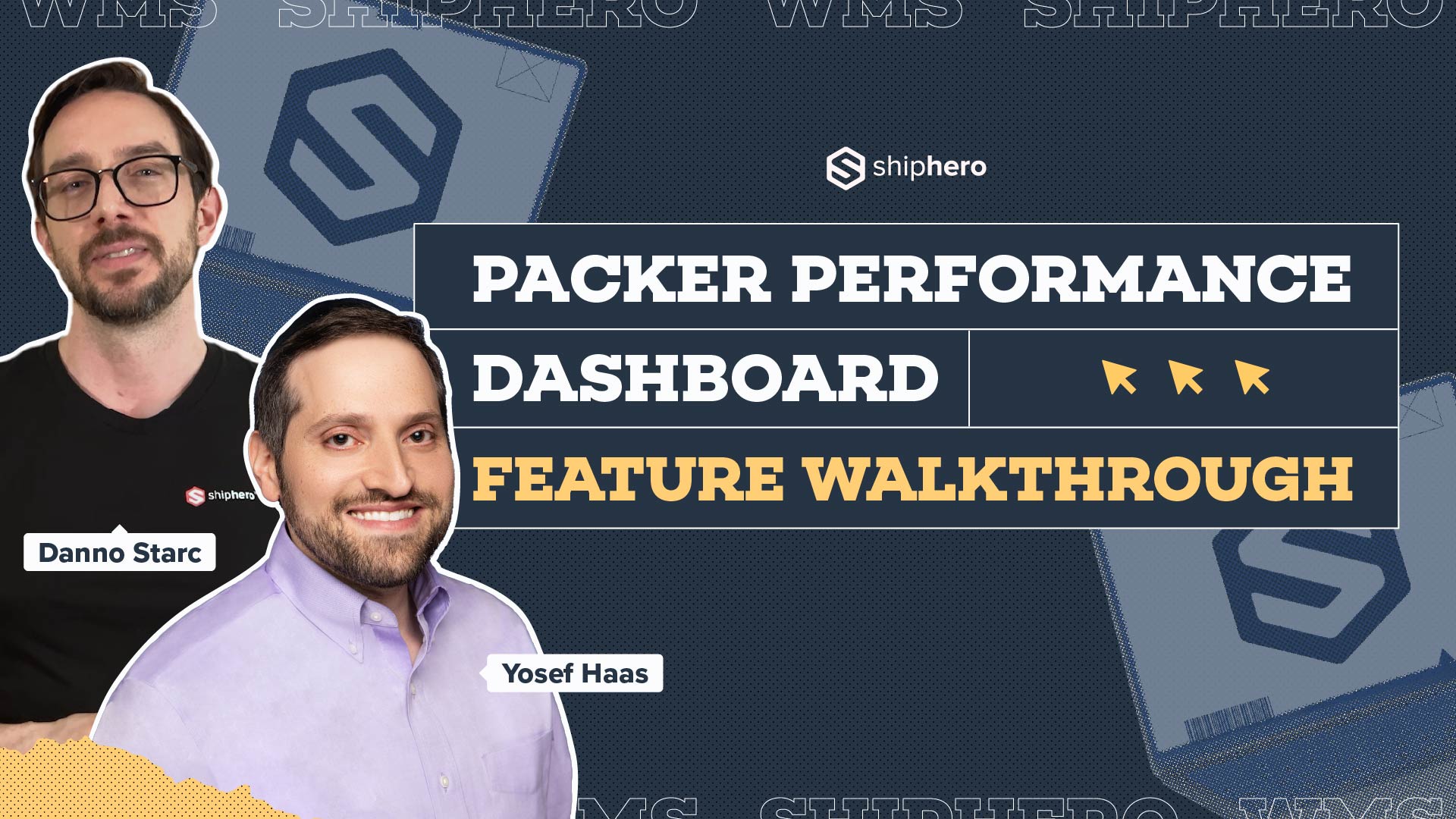
In this video, we explore ShipHero’s Packer Performance Dashboard—a powerful tool designed to provide unbiased, data-driven insights into your packing team’s efficiency. Unlike traditional productivity trackers that rely on averages, our dashboard evaluates order complexity, packing time, and individual packer performance to offer a comprehensive understanding of your warehouse operations.
Key Features Covered:
📦 Order Complexity Assessment: Learn how the dashboard differentiates between simple and complex orders, ensuring accurate performance metrics.
📦 Detailed Performance Metrics: Discover how to access real-time data on expected versus actual packing times, along with individual packer rankings.
📦 Data-Driven Decision Making: See how the tool enables fair evaluations, smarter hiring decisions, and effective team management based on factual data.
Join us for this in-depth walkthrough and see how ShipHero’s Packer Performance Dashboard can transform your warehouse efficiency.
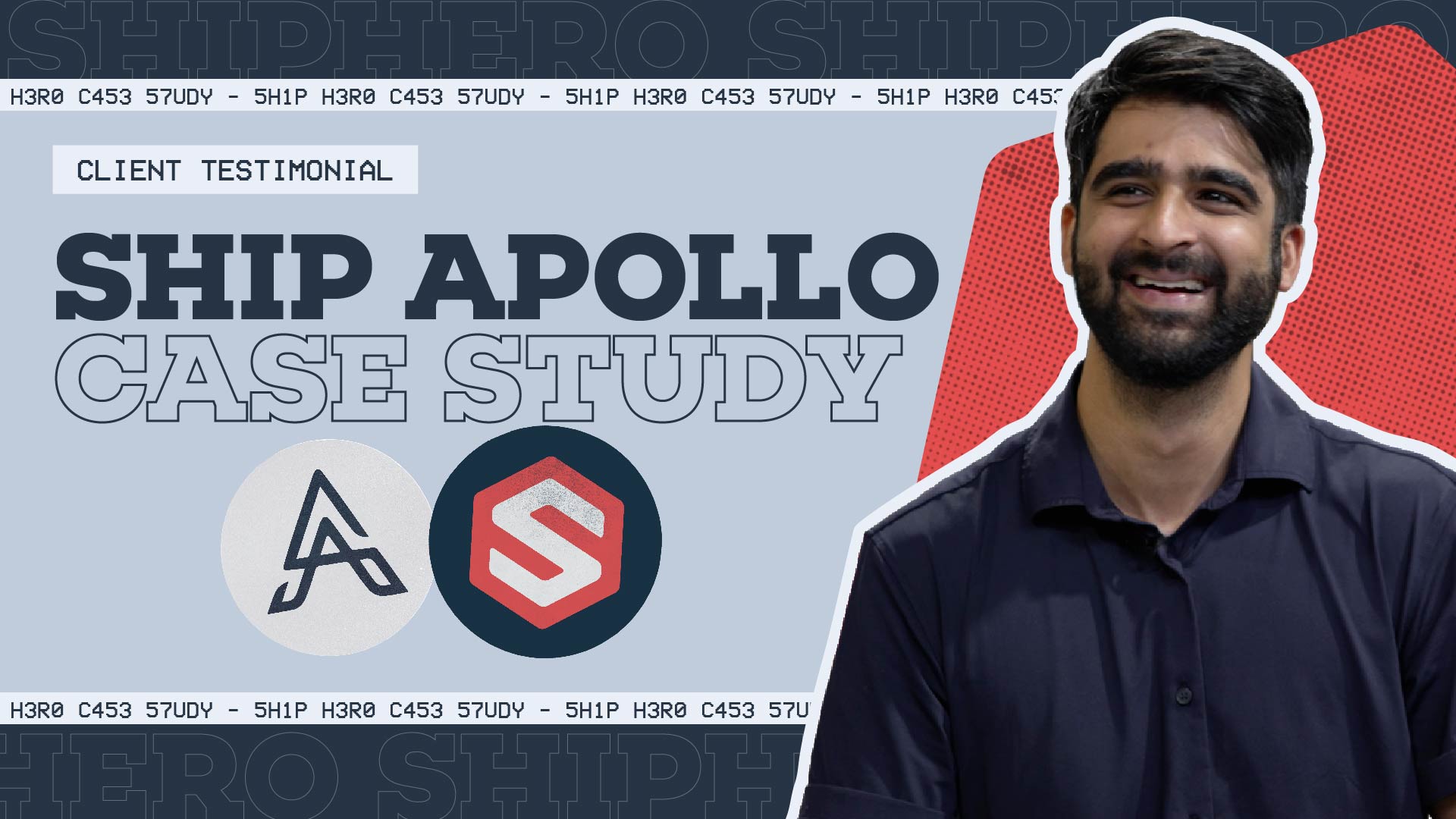
Discover how Rohan Kumar, Founder of The Do More Company, revolutionized fulfillment for Zenergy Chewing Gum using ShipHero and Ship Apollo. From scaling operations across the U.S. and Canada to seamless multi-warehouse management, hear how ShipHero’s tools have been a game-changer!
.svg)
.jpg)
.svg)


.svg)


